EasyPhpThumbnail
Image manipulation in PHP
The EasyPhpThumbnail Image Effects class allows you to handle image manipulation and PHP thumbnail generation for GIF, JPG and PNG on-the-fly. The class is FREE, 100% PHP based, available for PHP4 (from 4.3.11) and PHP5, is easy to use and provides lots of functionality with over 60 manipulations:
Resize, crop, rotate, flip, save as, shadow, watermark, text, border, sharpen, blur, water ripple, mirror, perspective, twirl, animation, displacement maps and more!!
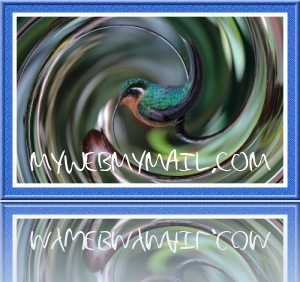
Getting started:
- Download EasyPhpThumbnail and upload the example directory to your web server
- Upload the class (PHP4 or PHP5 version) to the ‘inc’ example directory
- Open the example.php page in your browser
This will display a resized thumbnail. You can edit the example.php file and try one of the many examples.
The most simple example script would be:
<?php
include_once('inc/easyphpthumbnail.class.php');
$thumb = new easyphpthumbnail;
$thumb -> Createthumb('gfx/image.jpg');
?>

This would create a thumbnail with the standard settings and send the result to the browser (dynamic or on-the-fly thumbnail generation).
Note: If you are going to access the class from various pages on your website, make sure you always pass the full path to the image.
If you want to integrate the thumbnail on a webpage, you have to use a dynamic image. Create a separate PHP file called for example ‘thumbnail.php’ and add your code there:
<?php
if (isset($_REQUEST['thumb'])) {
 include_once('inc/easyphpthumbnail.class.php');
 // Your full path to the images
 $dir = str_replace(chr(92),chr(47),getcwd()) . '/gfx/';
 // Create the thumbnail
 $thumb = new easyphpthumbnail;
 $thumb -> Thumbsize = 300;
 $thumb -> Createthumb($dir . basename($_REQUEST['thumb']));
}
?>
Then on your page where you need the thumbnail add a link to the image like (save this sample as photo.php):
<?php
$file='image.jpg';
echo "<img src=\"thumbnail.php?thumb=$file\" alt=\"thumb\" />";
?>
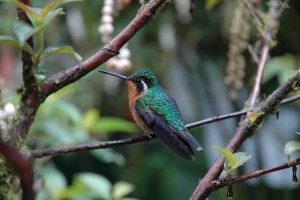
The directory structure in the above example would be: inc which includes the class, gfx for the images (needs to contain a file called ‘image.jpg’) and the files photo.php and thumbnail.php. Open the file ‘photo.php’ in your browser to see the result.The example above would show a larger thumbnail by using the ‘Thumbsize’ parameter:
Writing the thumbnail to file:
<?php
include_once('inc/easyphpthumbnail.class.php');
$thumb = new easyphpthumbnail;
$thumb -> Createthumb('gfx/image.jpg','file');
?>
For batch creation of thumbnails you can pass an array with filenames:
<?php
include_once('inc/easyphpthumbnail.class.php');
$thumb = new easyphpthumbnail;
$thumb -> Createthumb(array('gfx/image.jpg','image2.jpg','image3.jpg'),'file');
?>
Alternatively you can pass filename by filename allowing you to customize some options per image. In the example script below every image in the working directory is converted to JPG format and saved in the subdirectory ‘gfx/thumbs/’. In addition the thumbnail files are renamed with prefix ‘120px_thumb_’ and chmod-ded to ‘0755’.
<?php
include_once('inc/easyphpthumbnail.class.php');
$thumb = new easyphpthumbnail;
$thumb -> Thumbsize = 120;
// Your full path to the images
$loc = str_replace(chr(92),chr(47),getcwd()) . '/gfx/';
$thumb -> Chmodlevel = '0755';
$thumb -> Thumblocation = 'thumbs/';
$thumb -> Thumbsaveas = 'jpg';
$thumb -> Thumbprefix = '120px_thumb_';
if ($dir=@opendir($loc)) {
  while ($filename=@readdir($dir)) {
    if (($filename!='.') && ($filename!='..') && !is_dir($filename)) {
      $extension=strtolower(substr($filename,strrpos($filename,'.')+1,strlen($filename)));
      if ($extension=='jpg' || $extension=='jpeg' || $extension=='png' || $extension=='gif') {
        // Output to file
        // You can add some custom changes for individual images here
        $thumb -> Createthumb($loc . $filename,'file');
      }
    }
  }
}
?>
Now let’s add some more options:
<?php
include_once('inc/easyphpthumbnail.class.php');
$thumb = new easyphpthumbnail;
$thumb -> Thumbsize = 50;
$thumb -> Percentage = true;
$thumb -> Createthumb('gfx/image.jpg');
?>
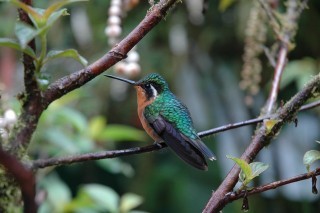
The standard resizing option is based in pixels, enable the percentage as in the example above and the thumbnail will be resized to 50%. The Thumbsize parameter resizes automatically based on width for landscape images and height for portrait images. In the example below we rotate the image by 90 degrees to obtain a portrait image, which is resized by 50%.
<?php
include_once('inc/easyphpthumbnail.class.php');
$thumb = new easyphpthumbnail;
$thumb -> Thumbsize = 50;
$thumb -> Rotate = 90;
$thumb -> Percentage = true;
$thumb -> Createthumb('gfx/image.jpg');
?>

The example below adds a shadow to the thumbnail, the background color is matched with the page background color.
<?php
include_once('inc/easyphpthumbnail.class.php');
$thumb = new easyphpthumbnail;
$thumb -> Backgroundcolor = '#D0DEEE';
$thumb -> Shadow = true;
$thumb -> Createthumb('gfx/image.jpg');
?>

Round the corners for a nice effect. The Clip corners function is an array with 7 values;
[0]: 0=disable 1=straight 2=rounded
[1]: Percentage of clipping
[2]: Clip randomly – Boolean 0=disable 1=enable
[3]: Clip top left – Boolean 0=disable 1=enable
[4]: Clip bottom left – Boolean 0=disable 1=enable
[5]: Clip top right – Boolean 0=disable 1=enable
[6]: Clip bottom right – Boolean 0=disable 1=enable
<?php
include_once('inc/easyphpthumbnail.class.php');
$thumb = new easyphpthumbnail;
$thumb -> Backgroundcolor = '#D0DEEE';
$thumb -> Clipcorner = array(2,15,0,0,1,1,0);
$thumb -> Createthumb('gfx/image.jpg');
?>

You can also round the corners and make them transparent:
<?php
include_once('inc/easyphpthumbnail.class.php');
$thumb = new easyphpthumbnail;
$thumb -> Backgroundcolor = '#0000FF';
$thumb -> Clipcorner = array(2,15,0,1,1,1,1);
$thumb -> Maketransparent = array(1,1,'#0000FF',30);
$thumb -> Createthumb('gfx/image.jpg');
?>

You can add a frame to create a more realistic photo effect:
<?php
include_once('inc/easyphpthumbnail.class.php');
$thumb = new easyphpthumbnail;
$thumb -> Framewidth = 10;
$thumb -> Framecolor = '#FFFFFF';
$thumb -> Backgroundcolor = '#D0DEEE';
$thumb -> Shadow = true;
$thumb -> Createthumb('gfx/image.jpg');
?>

The next example will show a more ‘classic’ thumbnail using a shadow and frame around the photo and the binder functionality.
<?php
include_once('inc/easyphpthumbnail.class.php');
$thumb = new easyphpthumbnail;
$thumb -> Framewidth = 10;
$thumb -> Framecolor = '#FFFFFF';
$thumb -> Backgroundcolor = '#D0DEEE';
$thumb -> Shadow = true;
$thumb -> Binder = true;
$thumb -> Binderspacing = 8;
$thumb -> Clipcorner = array(2,15,0,1,1,1,0);
$thumb -> Createthumb('gfx/image.jpg');
?>

Of course it is also possible to watermark your images. The position is determined by providing the XY position in a % of width and height. The position ‘0% 0%’ would be top-left, ‘100% 100%’ will be bottom right. The transparency of the PNG image can be set between 0 and 100. You get the best effect with transparent PNG images as shown in the example below:
<?php
include_once('inc/easyphpthumbnail.class.php');
$thumb = new easyphpthumbnail;
$thumb -> Thumbsize = 300;
$thumb -> Framewidth = 10;
$thumb -> Framecolor = '#00000';
$thumb -> Backgroundcolor = '#000000';
$thumb -> Clipcorner = array(2,15,0,1,1,1,1);
$thumb -> Watermarkpng = 'watermark.png';
$thumb -> Watermarkposition = '50% 50%';
$thumb -> Watermarktransparency = 70;
$thumb -> Createthumb('gfx/image.jpg');
?>

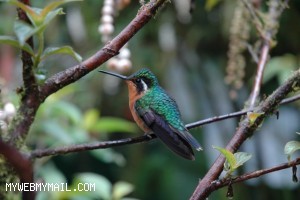
Another option to protect your copyright is to write a short text on the image. The following example uses the systemfont.
The textcolor, black or white, is automatically determined based on the color of the background of the image.
<?php
include_once('inc/easyphpthumbnail.class.php');
$thumb = new easyphpthumbnail;
$thumb -> Thumbsize = 300;
$thumb -> Copyrighttext = 'MYWEBMYMAIL.COM';
$thumb -> Copyrightposition = '0% 95%';
$thumb -> Createthumb('gfx/image.jpg');
?>
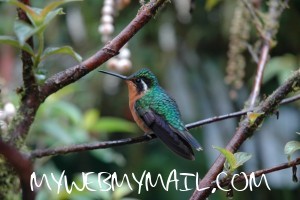
For a nicer effect you can use a TTF font:
<?php
include_once('inc/easyphpthumbnail.class.php');
$thumb = new easyphpthumbnail;
$thumb -> Thumbsize = 300;
$thumb -> Copyrighttext = 'MYWEBMYMAIL.COM';
$thumb -> Copyrightposition = '50% 90%';
$thumb -> Copyrightfonttype = 'handwriting.ttf';
$thumb -> Copyrightfontsize = 30;
$thumb -> Copyrighttextcolor = '#FFFFFF';
$thumb -> Createthumb('gfx/image.jpg');
?>
Adding a border to the image creates very interesting effects.
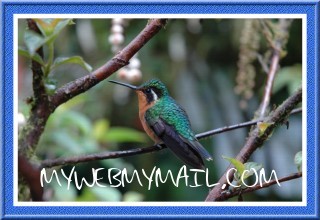
In the following example a transparent PNG image with blue border and white inner-frame was used.
<?php
include_once('inc/easyphpthumbnail.class.php');
$thumb = new easyphpthumbnail;
$thumb -> Thumbsize = 300;
$thumb -> Framewidth = 10;
$thumb -> Framecolor = '#00000';
$thumb -> Borderpng = 'border.png';
$thumb -> Copyrighttext = 'MYWEBMYMAIL.COM';
$thumb -> Copyrightposition = '50% 80%';
$thumb -> Copyrightfonttype = 'handwriting.ttf';
$thumb -> Copyrightfontsize = 30;
$thumb -> Copyrighttextcolor = '#FFFFFF';
$thumb -> Createthumb('gfx/image.jpg');
?>
Another border example:
<?php
include_once('inc/easyphpthumbnail.class.php');
$thumb = new easyphpthumbnail;
$thumb -> Thumbsize = 300;
$thumb -> Borderpng = 'cloud.png';
$thumb -> Createthumb('gfx/image.jpg');
?>

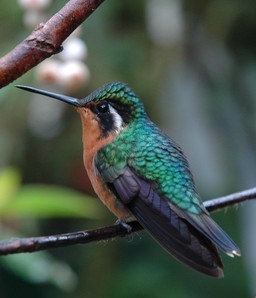
You can crop the image from the sides or from the center.
The crop function is an array with 6 values;
[0]: 0=disable 1=enable free crop 2=enable center crop
[1]: 0=percentage 1=pixels
[2]: Crop left
[3]: Crop right
[4]: Crop top
[5]: Crop bottom
<?php
include_once('inc/easyphpthumbnail.class.php');
$thumb = new easyphpthumbnail;
$thumb -> Thumbsize = 300;
$thumb -> Cropimage = array(2,0,20,20,35,35);
$thumb -> Createthumb('gfx/image.jpg');
?>
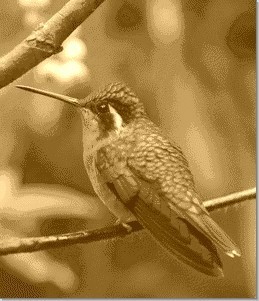
You can convert the image to greyscal or age it using the aging function which is an array with 3 values;
[0]: Boolean 0=disable 1=enable
[1]: Add noise 0-100, 0=disable
[2]: Sephia depth 0-100, 0=disable (=greyscale)
By adding ‘noise’ to the image it will look less sharp, the sephia turns it into old darkbrownish colors.
<?php
include_once('inc/easyphpthumbnail.class.php');
$thumb = new easyphpthumbnail;
$thumb -> Thumbsize = 300;
$thumb -> Shadow = true;
$thumb -> Backgroundcolor = '#D0DEEE';
$thumb -> Cropimage = array(2,0,20,20,35,35);
$thumb -> Ageimage = array(1,10,80);
$thumb -> Createthumb('gfx/image.jpg');
?>
You can rotate or flip the image. The following example flips the image over the horizontal axis:
<?php
include_once('inc/easyphpthumbnail.class.php');
$thumb = new easyphpthumbnail;
$thumb -> Thumbsize = 300;
$thumb -> Fliphorizontal = true;
$thumb -> Createthumb('gfx/image.jpg');
?>
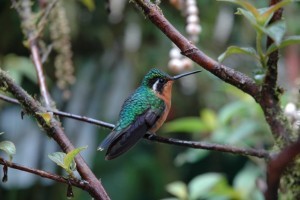
Flipping over the vertical axis:
<?php
include_once('inc/easyphpthumbnail.class.php');
$thumb = new easyphpthumbnail;
$thumb -> Thumbsize = 300;
$thumb -> Flipvertical = true;
$thumb -> Createthumb('gfx/image.jpg');
?>

Rotate at any angle without cropping the image, the example below rotates the image over -75 degrees:
<?php
include_once('inc/easyphpthumbnail.class.php');
$thumb = new easyphpthumbnail;
$thumb -> Thumbsize = 300;
$thumb -> Rotate = -75;
$thumb -> Backgroundcolor = '#D0DEEE';
$thumb -> Createthumb('gfx/image.jpg');
?>

The ‘Square’ function will create a square canvas (same width and height – for demonstration the background/canvas is red):
<?php
include_once('inc/easyphpthumbnail.class.php');
$thumb = new easyphpthumbnail;
$thumb -> Thumbsize = 300;
$thumb -> Backgroundcolor = '#FF0000';
$thumb -> Cropimage = array(2,0,20,20,35,35);
$thumb -> Ageimage = array(1,0,0);
$thumb -> Rotate = 180;
$thumb -> Square = true;
$thumb -> Createthumb('gfx/image.jpg');
?>

You can combine all the above image manipulations, the class will determine the correct order in which to apply them.
Setting the ‘Quality’ will improve the output result of JPG images:
<?php
include_once('inc/easyphpthumbnail.class.php');
$thumb = new easyphpthumbnail;
$thumb -> Thumbsize = 300;
$thumb -> Backgroundcolor = '#0000FF';
$thumb -> Clipcorner = array(2,15,0,1,1,1,1);
$thumb -> Quality = 100;
$thumb -> Rotate = -35;
$thumb -> Square = true;
$thumb -> Createthumb('gfx/image.jpg');
?>

You can also apply image manipulations without resizing the original image by setting the ‘Thumbsize’ parameter to zero, as shown below:
<?php
include_once('inc/easyphpthumbnail.class.php');
$thumb = new easyphpthumbnail;
$thumb -> Thumbsize = 0;
$thumb -> Backgroundcolor = '#D0DEEE';
$thumb -> Clipcorner = array(2,5,0,1,1,1,1);
$thumb -> Watermarkpng = 'watermark.png';
$thumb -> Watermarkposition = '0% 100%';
$thumb -> Watermarktransparency = 50;
$thumb -> Copyrighttext = 'Copyright (c)';
$thumb -> Copyrightposition = '100% 90%';
$thumb -> Copyrightfonttype = 'handwriting.ttf';
$thumb -> Copyrightfontsize = 30;
$thumb -> Copyrighttextcolor = '#D0DEEE';
$thumb -> Createthumb('gfx/image.jpg');
?>
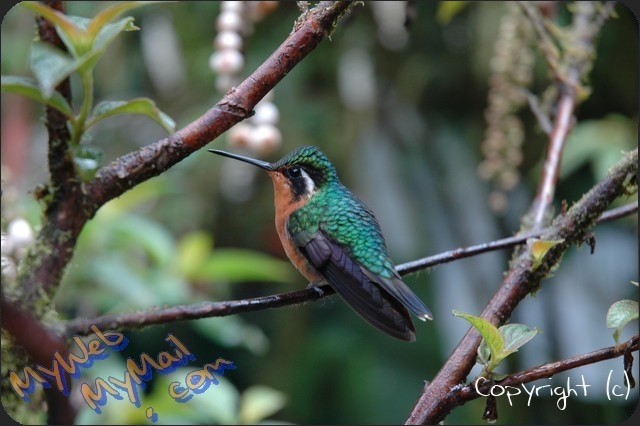
New functionality added in version 1.0.2:
User defined filters for PHP4 and PHP5 similar to Paint Shop Pro. A 3×3 filter matrix is applied to the image. The class includes standard filters for sharpening, blurring, embossing and edge detection:
<?php
include_once('inc/easyphpthumbnail.class.php');
$thumb = new easyphpthumbnail;
$thumb -> Thumbsize = 300;
$thumb -> Edge = true;
$thumb -> Createthumb('gfx/image.jpg');
?>
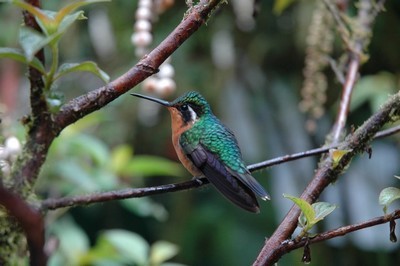

<?php
include_once('inc/easyphpthumbnail.class.php');
$thumb = new easyphpthumbnail;
$thumb -> Thumbsize = 300;
$thumb -> Emboss = true;
$thumb -> Createthumb('gfx/image.jpg');
?>

<?php
include_once('inc/easyphpthumbnail.class.php');
$thumb = new easyphpthumbnail;
$thumb -> Thumbsize = 300;
$thumb -> Sharpen = true;
$thumb -> Createthumb('gfx/image.jpg');
?>

<?php
include_once('inc/easyphpthumbnail.class.php');
$thumb = new easyphpthumbnail;
$thumb -> Thumbsize = 300;
$thumb -> Blur = true;
$thumb -> Createthumb('gfx/image.jpg');
?>

It is also possible to define your own filter and set the divisor and offset parameters:
<?php
include_once('inc/easyphpthumbnail.class.php');
$thumb = new easyphpthumbnail;
$thumb -> Thumbsize = 300;
$thumb -> Filter = array(-1,-1,-1,-1,8,-1,-1,-1,-1);
$thumb -> Divisor = 1;
$thumb -> Offset = 0;
$thumb -> Applyfilter = true;
$thumb -> Createthumb('gfx/image.jpg');
?>
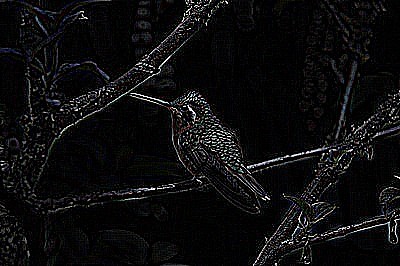
Another function added in version 1.0.2 is the standard rotate() function that rotates and crops the image to fit the canvas:
<?php
include_once('inc/easyphpthumbnail.class.php');
$thumb = new easyphpthumbnail;
$thumb -> Thumbsize = 300;
$thumb -> Backgroundcolor = '#D0DEEE';
$thumb -> Rotate = -30;
$thumb -> Croprotate = true;
$thumb -> Createthumb('gfx/image.jpg');
?>

New functionality added in version 2.0.0:
Perspective allows you to create a 2D perspective from the left, right, top or bottom side to the image or thumbnail:
<?php
include_once('inc/easyphpthumbnail.class.php');
$thumb = new easyphpthumbnail;
$thumb -> Thumbsize = 300;
$thumb -> Backgroundcolor = '#D0DEEE';
$thumb -> Perspective = array(1,0,20);
$thumb -> Createthumb('gfx/image.jpg');
?>
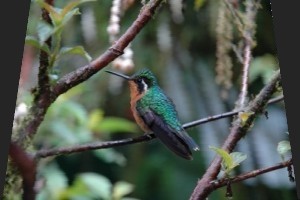
By using the shading function a shadow gradient can be applied from the left, right, top or bottom side to the image:
<?php
include_once('inc/easyphpthumbnail.class.php');
$thumb = new easyphpthumbnail;
$thumb -> Thumbsize = 300;
$thumb -> Shading = array(1,70,80,0);
$thumb -> Shadingcolor = '#D0DEEE';
$thumb -> Createthumb('gfx/image.jpg');
?>

The mirror effect mirrors a part of the image and uses a gradient for enhanced effect. It is possible to set a reflection gap between the image and reflection:
<?php
include_once('inc/easyphpthumbnail.class.php');
$thumb = new easyphpthumbnail;
$thumb -> Thumbsize = 300;
$thumb -> Mirror = array(1,10,70,40,2);
$thumb -> Mirrorcolor = '#D0DEEE';
$thumb -> Createthumb('gfx/image.jpg');
?>
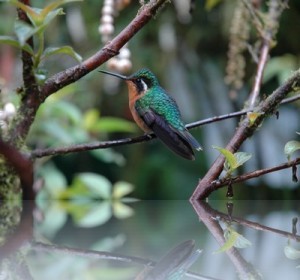
The negative and grayscale function create true color results:
<?php
include_once('inc/easyphpthumbnail.class.php');
$thumb = new easyphpthumbnail;
$thumb -> Thumbsize = 300;
$thumb -> Greyscale = true;
//$thumb -> Negative = true;
$thumb -> Createthumb('gfx/image.jpg');
?>


Replace colors with the colorreplace function and define a tolerance/sensitivity:
<?php
include_once('inc/easyphpthumbnail.class.php');
$thumb = new easyphpthumbnail;
$thumb -> Thumbsize = 300;
$thumb -> Colorreplace = array(1,'#FFFFFF','#FF6600',60);
$thumb -> Createthumb('gfx/image.jpg');
?>

Define a transparent color with tolerance/sensitivity (8-bit GIF or PNG):
<?php
include_once('inc/easyphpthumbnail.class.php');
$thumb = new easyphpthumbnail;
$thumb -> Thumbsize = 300;
$thumb -> Maketransparent = array(1,0,'#171915',30);
$thumb -> Createthumb('gfx/image.jpg');
?>

Repositioning pixels randomly creates interesting effects:
<?php
include_once('inc/easyphpthumbnail.class.php');
$thumb = new easyphpthumbnail;
$thumb -> Thumbsize = 300;
$thumb -> Pixelscramble = array(1,4,2);
$thumb -> Createthumb('gfx/image.jpg');
?>

Brightness, contrast and gamma can also be modified:
<?php
include_once('inc/easyphpthumbnail.class.php');
$thumb = new easyphpthumbnail;
$thumb -> Thumbsize = 300;
$thumb -> Brightness = array(1,50);
//$thumb -> Contrast = array(1,30);
//$thumb -> Gamma = array(1,0.5);
$thumb -> Createthumb('gfx/image.jpg');
?>
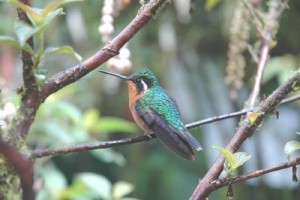
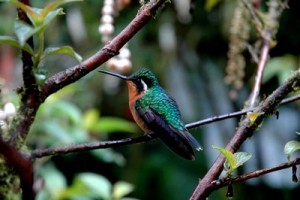

It is possible to merge/blend a color or reduce the colors in the palette:
<?php
include_once('inc/easyphpthumbnail.class.php');
$thumb = new easyphpthumbnail;
$thumb -> Thumbsize = 300;
$thumb -> Colorize = array(1,0,0,125,0);
//$thumb -> Palette = array(1,64);
$thumb -> Createthumb('gfx/image.jpg');
?>


Noise in images can be reduced by a mean filter, this generally blurs the image:
<?php
include_once('inc/easyphpthumbnail.class.php');
$thumb = new easyphpthumbnail;
$thumb -> Thumbsize = 300;
$thumb -> Mean = true;
$thumb -> Createthumb('gfx/image.jpg');
?>


Another method to reduce noise is with a median filter, which provides excellent results in filtering ‘dead’ pixels:
<?php
include_once('inc/easyphpthumbnail.class.php');
$thumb = new easyphpthumbnail;
$thumb -> Thumbsize = 300;
$thumb -> Medianfilter = true;
$thumb -> Createthumb('gfx/image.jpg');
?>
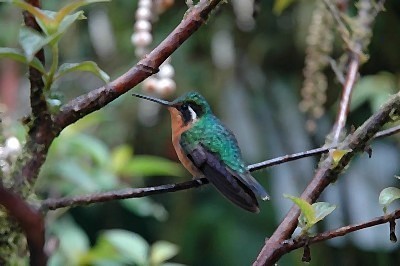
Below follow some interesting image deformation filters starting with a simple pixelate filter and ending with
mathematical bilineair deformations:
<?php
include_once('inc/easyphpthumbnail.class.php');
$thumb = new easyphpthumbnail;
$thumb -> Thumbsize = 300;
$thumb -> Pixelate = array(1,10);
$thumb -> Createthumb('gfx/image.jpg');
?>
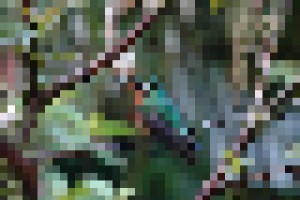
<?php
include_once('inc/easyphpthumbnail.class.php');
$thumb = new easyphpthumbnail;
$thumb -> Thumbsize = 300;
$thumb -> Ripplefx = array(1,5,15,5,5);
$thumb -> Createthumb('gfx/image.jpg');
?>

<?php
include_once('inc/easyphpthumbnail.class.php');
$thumb = new easyphpthumbnail;
$thumb -> Thumbsize = 300;
$thumb -> Twirlfx = array(1,20,0);
$thumb -> Createthumb('gfx/image.jpg');
?>

<?php
include_once('inc/easyphpthumbnail.class.php');
$thumb = new easyphpthumbnail;
$thumb -> Thumbsize = 300;
$thumb -> Lakefx = array(1,15,80);
$thumb -> Createthumb('gfx/image.jpg');
?>

<?php
include_once('inc/easyphpthumbnail.class.php');
$thumb = new easyphpthumbnail;
$thumb -> Thumbsize = 300;
$thumb -> Waterdropfx = array(1,1.2,400,40);
$thumb -> Createthumb('gfx/image.jpg');
?>

New functionality added in version 2.0.1:
The function Cropimage() now includes a square scrop, see example below:
<?php
include_once('inc/easyphpthumbnail.class.php');
$thumb = new easyphpthumbnail;
$thumb -> Thumbsize = 200;
$thumb -> Cropimage = array(3,0,0,0,0,0);
$thumb -> Createthumb('gfx/image.jpg');
?>

New functionality added in version 2.0.3:
The function Create_apng() creates an animated PNG image, see example below (PNG animation is only supported by Mozilla Firefox 3, Opera 9.5, KSquirrel 0.7.2 and XnView 1.92 for the moment, other browsers will display the 1st frame only):
<?php
// First we create some new PNG thumbnails
// Then we create the animation
set_time_limit(0);
$frames = array();
$thumb -> Thumbsaveas = 'png';
$thumb -> Thumbprefix = '';
$thumb -> Thumblocation = '';
$thumb -> Copyrighttext = 'MYWEBMYMAIL.COM';
$thumb -> Copyrightfonttype = 'gfx/handwriting.ttf';
$thumb -> Copyrighttextcolor = '#FFFFFF';
for ($i = 1; $i <= 8; $i++) {
 $frames[] = "frame$i.png";
 $thumb -> Thumbfilename = "frame$i.png";
 $thumb -> Copyrightposition = '50% 50%';
 $thumb -> Copyrightfontsize = $i*4;
 // You can also add the waterdrop effect, but it might time out!
 // $thumb -> Waterdropfx = array(1,$i/6,400,40);
 $thumb -> Createthumb('gfx/image.jpg','file');
}
// Create the animation
$thumb -> Create_apng($frames, 'animation.png', 250);
?>

New functionality added in version 2.0.4:
The Polaroid and displacement map feature, previously only available in the Pro version are now included in the free version:
<?php
include_once('easyphpthumbnailpro.class.php');
$thumb = new easyphpthumbnail;
$thumb -> Thumbsize = 300;
$thumb -> Shadow = true;
$thumb -> Polaroid = true;
$thumb -> Polaroidtext = 'MYWEBMYMAIL.COM';
$thumb -> Polaroidfonttype = 'handwriting.ttf';
$thumb -> Polaroidfontsize = '30';
$thumb -> Polaroidtextcolor = '#000000';
$thumb -> Createthumb('gfx/image.jpg');
?>

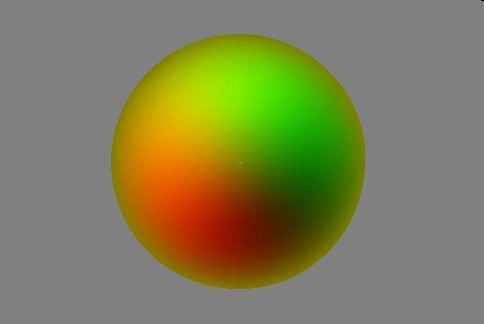
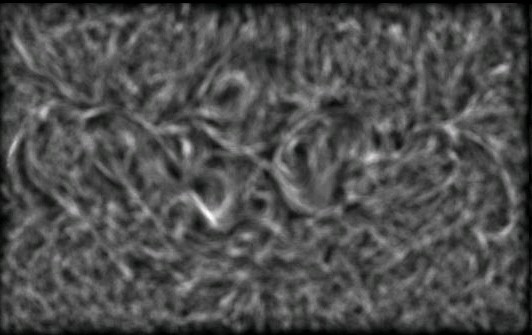
Image deformation is also possible by using a displacement map and bilinear filter. The Red and Green colors of the image in the displacement map
are a measure for the X and Y pixel shift in the original image, grey is neutral. You can spend hours discovering effects of displacement maps:
<?php
include_once('easyphpthumbnailpro.class.php');
$thumb = new easyphpthumbnail;
$thumb -> Thumbsize = 300;
$thumb -> Displacementmap = array(1,'gfx/displacementmap.jpg',0,0,0,50,50);
$thumb -> Createthumb('gfx/image.jpg');
?>
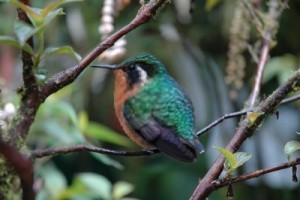
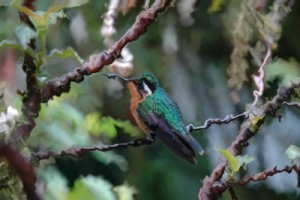

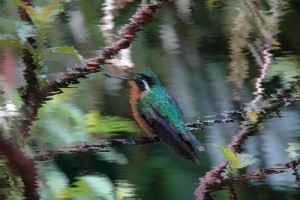


A displacement map can be applied to the image and a 2nd map to the thumbnail creating stunning effects:
<?php
include_once('inc/easyphpthumbnail.class.php');
$thumb = new easyphpthumbnail;
$thumb -> Thumbsize = 300;
$thumb -> Copyrighttext = 'MYWEBMYMAIL.COM';
$thumb -> Copyrightposition = '50% 80%';
$thumb -> Copyrightfonttype = 'gfx/handwriting.ttf';
$thumb -> Copyrightfontsize = 20;
$thumb -> Copyrighttextcolor = '#FFFFFF';
$thumb -> Borderpng = 'gfx/border.png';
$thumb -> Backgroundcolor = '#D0DEEE';
$thumb -> Mirror = array(1,30,90,40,2);
$thumb -> Mirrorcolor = '#D0DEEE';
$thumb -> Displacementmap = array(1,'gfx/displacementmap_ball.jpg',0,0,0,50,50);
$thumb -> Displacementmapthumb = array(1,'gfx/displacementmap.jpg',0,0,200,25,25);
$thumb -> Createthumb('gfx/image.jpg');
?>

By using the Canvas option it is possible to create an image without loading it from file and apply some effects like a text wobble:
<?php
include_once('inc/easyphpthumbnail.class.php');
$thumb = new easyphpthumbnail;
$thumb -> Createcanvas(300,50,IMAGETYPE_PNG,'#D0DEEE',false);
$thumb -> Addtext = array(1,'MYWEBMYMAIL.COM','50% 50%','gfx/handwriting.ttf',20,'#FF0000');
$thumb -> Ripplefx = array(1,3,12,0,0);
$thumb -> Framewidth = 10;
$thumb -> Framecolor = '#FF6600';
$thumb -> Backgroundcolor = '#D0DEEE';
$thumb -> Shadow = true;
$thumb -> Createthumb();
?>

In order to load pages faster you can embed images in HTML or email messages, called base64 encoded image data:
<?php
include_once('inc/easyphpthumbnail.class.php');
$thumb = new easyphpthumbnail;
echo '<img src="' . $thumb -> Createbase64('gfx/image.jpg') . '" />';
?>

By using the option ‘Keeptransparency’ you can resize images with transparency:
<?php
include_once('inc/easyphpthumbnail.class.php');
$thumb = new easyphpthumbnail;
$thumb -> Thumbsize = 100;
$thumb -> Keeptransparency = true;
$thumb -> Createthumb('gfx/cloud.png');
?>

Changes in version 2.0.5:
- Fixed a transparency bug in the function createemptythumbnail(); thanks to Alexander Vasilyev from http://www.Hamster3d.com
- Added an example for a dynamically created thumbnail
Changes in version 2.0.6:
- Added EXIF functions to delete, read, and write/overwrite EXIF information in JPG images
- Fixed bug in imagejpeg function, 2nd parameter should be NULL instead of ”; thanks to Mantas from Lithuania
- Set chmod level to ‘0755’ for saved images as standard
With any image manipulation you do in PHP, you will loose the EXIF information. The solution below will extract the EXIF information before any changes to the image are made and insert it back in the manipulated image:
<?php
include_once('inc/easyphpthumbnail.class.php');
$thumb = new easyphpthumbnail;
$exifdata = $thumb -> read_exif('gfx/image.jpg');
$thumb -> Thumblocation = 'gfx/';
$thumb -> Thumbprefix = '';
$thumb -> Thumbfilename = 'exifthumb.jpg';
$thumb -> Createthumb('gfx/image.jpg', 'file');
$thumb -> insert_exif('gfx/exifthumb.jpg', $exifdata);
?>
API Reference
Initialize the class:
Initialize the class and output a thumbnail to the screen:
include_once('inc/easyphpthumbnail.class.php');
$thumb = new easyphpthumbnail;
$thumb -> Createthumb('gfx/image.jpg');
Over 60+ Options, in alphabetical order:
A
$thumb -> Addtext               = array()       // Add text to the original image
                                                   Array with 6 values
                                                   [0]: 0=disable 1=enable
                                                   [1]: The text to add
                                                   [2]: The position of the text '50% 50%' is the center
                                                   [3]: Path to the TTF font (standard systemfont will be used)
                                                   [4]: The fontsize to use
                                                   [5]: The copyright text color in web format '#000000'
$thumb -> Ageimage              = (array)       // Apply greyscale array(1,0,0) or aging effect array(1,10,80)
                                                   Age image; array with 3 values
                                                   [0]: Boolean 0=disable 1=enable
                                                   [1]: Add noise 0-100, 0=disable
                                                   [2]: Sephia depth 0-100, 0=disable (greyscale)
$thumb -> Applyfilter           = (boolean)     // Apply a user defined 3x3 filter
B
$thumb -> Backgroundcolor       = (string)      // The backgroundcolor in web format '#FFFFFF'
$thumb -> Binder                = (boolean)     // Draw a binder on the left side of the thumbnail
$thumb -> Binderspacing         = (int)         // Space between binder rings in pixels
$thumb -> Blur                  = (boolean)     // Auto-filter: Blur
$thumb -> Borderpng             = (string)      // The path to the thumbnail border PNG image
$thumb -> Brightness            = (array)       // Change the brightness of the image array(1,50)
                                                   Array with 2 values
                                                   [0]: Boolean 0=disable 1=enable
                                                   [1]: Brightness -100 to 100
C
$thumb -> Chmodlevel            = (string)      // The chmod command to apply to saved thumbnails '0755'
$thumb -> Clipcorner            = (array)       // Clip the corners of the thumbnail array(2,15,0,1,1,1,0)
                                                   Clip corners; array with 7 values
                                                   [0]: 0=disable 1=straight 2=rounded
                                                   [1]: Percentage of clipping
                                                   [2]: Clip randomly Boolean 0=disable 1=enable
                                                   [3]: Clip top left Boolean 0=disable 1=enable
                                                   [4]: Clip bottom left Boolean 0=disable 1=enable
                                                   [5]: Clip top right Boolean 0=disable 1=enable
                                                   [6]: Clip bottom right Boolean 0=disable 1=enable
$thumb -> Colorreplace          = (array)       // Replace a color in the image array(1,'#FFFFFF','#FF6600',60)
                                                   Array with 4 values
                                                   [0]: Boolean 0=disable 1=enable
                                                   [1]: Color to replace in web format: '#00FF00'
                                                   [2]: Replacement color in web format: '#FF0000'
                                                   [3]: RGB tolerance 0 - 100
$thumb -> Colorize              = (array)       // Merge a color in the image array(1,0,0,125,0)
                                                   Array with 5 values
                                                   [0]: Boolean 0=disable 1=enable
                                                   [1]: Red component 0 - 255
                                                   [2]: Green component 0 - 255
                                                   [3]: Blue component 0 - 255
                                                   [4]: Opacity level 0 - 127
$thumb -> Contrast              = (array)       // Change the contrast of the image array(1,30)
                                                   Array with 2 values
                                                   [0]: Boolean 0=disable 1=enable
                                                   [1]: Contrast -100 to 100
$thumb -> Copyrighttext         = (string)      // Copyright text
$thumb -> Copyrightposition     = (string)      // The position of the text '50% 50%' is the center
$thumb -> Copyrightfonttype     = (string)      // The path to the TTF font (standard systemfont will be used)
$thumb -> Copyrightfontsize     = (int)         // The fontsize to use
$thumb -> Copyrighttextcolor    = (string)      // The copyright text color in web format '#000000'
$thumb -> Createthumb('imagepath'[,'output'])   // Create and output thumbnail
                                                   Function with 2 values
                                                   [string]: Filename for the image to convert
                                                   [string]: Output to the 'screen' (standard) or 'file' (option)
$thumb -> Createbase64('imagepath')                // Output the thumbnail as base64 encoded data
                                                   Function with 1 value
                                                   [string]: Filename for image to convert
$thumb -> Createcanvas(i,i,i,s,b)               // Create an image from a canvas - use with Createthumb()
                                                   Function with 5 values
                                                   [int]: Canvas width in pixels
                                                   [int]: Canvas height in pixels
                                                   [int]: Imagetype PHP: IMAGETYPE_PNG, IMAGETYPE_GIF, IMAGETYPE_JPEG
                                                   [string]: Fill color
                                                   [boolean]: Transparent (boolean)
$thumb -> Create_apng(array, string, int)       // Create the APNG thumbnail
                                                   Function with 3 values
                                                   [array]: Array with filenames of PNG images (frames)
                                                   [string]: Filename for APNG: 'animation.png'
                                                   [int]: Delay between frames in milliseconds
$thumb -> Cropimage             = (array)       // Crop the thumbnail array(0,0,20,20,20,20)
                                                   Crop image; array with 6 values
                                                   [0]: 0=disable 1=free crop 2=center crop 3=square crop
                                                   [1]: 0=percentage 1=pixels
                                                   [2]: Crop left
                                                   [3]: Crop right
                                                   [4]: Crop top
                                                   [5]: Crop bottom
$thumb -> Croprotate            = (boolean)     // Rotate function that crops the image to fit on the same canvas size
D
$thumb -> Displacementmap       = (array)       // Deform the image with a displacementmap
                                                   Array with 7 values: array(1,'gfx/displacementmap.jpg',0,0,0,50,50)
                                                   [0]: 0=disable 1=enable
                                                   [1]: Path to displacement image (grey #808080 is neutral)
                                                   [2]: 0=resize the map to fit the image 1=keep original map size
                                                   [3]: X coordinate for map position in px
                                                   [4]: Y coordinate for map position in px
                                                   [5]: X displacement scale in px
                                                   [6]: Y displacement scale in px
$thumb -> Displacementmapthumb  = (array)       // Deform the thumbnail with a displacementmap
                                                   Array with 7 values: array(1,'gfx/displacementmap.jpg',0,0,0,50,50)
                                                   [0]: 0=disable 1=enable
                                                   [1]: Path to displacement image (grey #808080 is neutral)
                                                   [2]: 0=resize the map to fit the image 1=keep original map size
                                                   [3]: X coordinate for map position in px
                                                   [4]: Y coordinate for map position in px
                                                   [5]: X displacement scale in px
                                                   [6]: Y displacement scale in px
$thumb -> Divisor               = (int)         // The divisor for the 3x3 filter
E
$thumb -> Edge                  = (boolean)     // Auto-filter: Edge
$thumb -> Emboss                = (boolean)     // Auto-filter: Emboss
F
$thumb -> Fliphorizontal        = (boolean)     // Flips the image over the horizontal axis
$thumb -> Flipvertical          = (boolean)     // Flips the image over the vertical axis
$thumb -> Filter                = (array)       // Matrix of size 3x3 array(-1,-1,-1,-1,8,-1,-1,-1,-1)
                                                   Filter, array with 9 values
                                                   [0]: a1,1
                                                   [1]: a1,2
                                                   [2]: a1,3
                                                   [3]: a2,1
                                                   [4]: a2,2
                                                   [5]: a2,3
                                                   [6]: a3,1
                                                   [7]: a3,2
                                                   [8]: a3,3
$thumb -> Framewidth            = (int)         // Add a frame around the thumbnail in pixels
$thumb -> Framecolor            = (string)      // The framecolor in web format '#FFFFFF'
G
$thumb -> Gamma                 = (array)       // Change the gamma of the image array(1,0.5)
                                                   Array with 2 values
                                                   [0]: Boolean 0=disable 1=enable
                                                   [1]: Gamma correction factor
$thumb -> Greyscale             = (boolean)     // Convert to true color grayscale
I
$thumb -> Inflate               = (boolean)     // Allow images to be enlarged
$thumb -> insert_exif('source','exifdata')      // Insert binary EXIF data in JPG image
                                                   Function with 2 values
                                                   [string]: Source filename for JPG image
                                                   [string]: Binary EXIF data to insert in JPG image
K
$thumb -> Keeptransparency = (boolean) // Keep transparency of original image
L
$thumb -> Lakefx                = (array)       // Apply a lake deformation to the image array(1,15,80)
                                                   Array with 3 values
                                                   [0]: Boolean 0=disable 1=enable
                                                   [1]: Density of the waves
                                                   [2]: Lake area measured from bottom 0 - 100
M
$thumb -> Maketransparent       = (array)       // Make the image transparent array(1,0,'#171915',30)
                                                   Array with 4 values
                                                   [0]: Boolean 0=disable 1=enable
                                                   [1]: 0=PNG 1=GIF
                                                   [2]: Replacement color in web format: '#FF0000'
                                                   [3]: RGB tolerance 0 - 100
$thumb -> Mean                  = (boolean)     // Auto-filter: Mean
$thumb -> Medianfilter          = (boolean)     // Apply a median noise reduction filter
$thumb -> Mirror                = (array)       // Apply a mirror effect to the thumbnail array(1,10,70,40,2)
                                                   Array with 5 values
                                                   [0]: Boolean 0=disable 1=enable
                                                   [1]: Mirror transparency gradient starting strength 0 - 100
                                                   [2]: Mirror transparency gradient ending strength 0 - 100
                                                   [3]: Mirror area 0 - 100
                                                   [4]: Mirror 'gap' between original image and reflection in px
$thumb -> Mirrorcolor           = (string)      // The Mirror gradient color in web format '#000000'
N
$thumb -> Negative = (boolean) // Create image negative
O
$thumb -> Offset = (int) // The color offset for the filter
P
$thumb -> Palette               = (array)       // Change the palette of the image array(1,32)
                                                   Array with 2 values
                                                   [0]: Boolean 0=disable 1=enable
                                                   [1]: Amount of colors for the palette
$thumb -> Percentage            = (boolean)     // Use percentage instead of pixels
$thumb -> Perspective           = (array)       // Apply a perspective to the image array(1,0,20)
                                                   Array with 3 values
                                                   [0]: Boolean 0=disable 1=enable
                                                   [1]: Direction 0=left 1=right 2=top 3=bottom
                                                   [2]: Perspective strength 0 - 100
$thumb -> Perspectivethumb      = (array)       // Apply a perspective to the thumbnail array(1,0,20)
                                                   Array with 3 values
                                                   [0]: Boolean 0=disable 1=enable
                                                   [1]: Direction 0=left 1=right 2=top 3=bottom
                                                   [2]: Perspective strength 0 - 100
$thumb -> Pixelscramble         = (array)       // Scramble pixels in the image array(1,4,2)
                                                   Array with 3 values
                                                   [0]: Boolean 0=disable 1=enable
                                                   [1]: Pixel range
                                                   [2]: Repeats (use with care!)
$thumb -> Pixelate              = (array)       // Pixelate the image array(1,10)
                                                   Array with 2 values
                                                   [0]: Boolean 0=disable 1=enable
                                                   [1]: Block size in px
$thumb -> Polaroid              = (boolean)     // Convert the thumbnail to a polaroid look
$thumb -> Polaroidtext          = (string)      // Write a text on the polaroid
$thumb -> Polaroidfonttype      = (string)      // The path to the TTF font
$thumb -> Polaroidfontsize      = (int)         // The fontsize to use
$thumb -> Polaroidtextcolor     = (string)      // The polaroid text color in web format '#000000'
$thumb -> Polaroidframecolor    = (string)      // The polaroid frame color in web format '#FFFFFF'
Q
$thumb -> Quality = (int) // The output quality of JPG images
R
$thumb -> Ripplefx              = (array)       // Apply a ripple deformation to the image array(1,5,15,5,5)
                                                   Array with 5 values
                                                   [0]: Boolean 0=disable 1=enable
                                                   [1]: Amount of horizontal waves
                                                   [2]: Amplitude of horizontal waves in px
                                                   [3]: Amount of vertical waves
                                                   [4]: Amplitude of vertical waves in px
$thumb -> Rotate                = (int)         // Rotate the image in degrees
$thumb -> read_exif('source')                   // Read EXIF information from JPG image
                                                   Function with 1 value, returns EXIF binary data
                                                   [string]: Filename for image with EXIF information
S
$thumb -> Shadow                = (boolean)     // Add a shadow around the thumbnail
$thumb -> Shading               = (array)       // Apply shading to the image array(1,70,80,0)
                                                   Array with 4 values
                                                   [0]: Boolean 0=disable 1=enable
                                                   [1]: Shading strength 0 - 100
                                                   [2]: Shading area 0 - 100
                                                   [3]: Shading direction 0=right 1=left 2=top 3=bottom
$thumb -> Shadingcolor          = (string)      // The shading gradient color in web format '#000000'
$thumb -> Sharpen               = (boolean)     // Auto-filter: Sharpen
$thumb -> Square                = (boolean)     // Draw thumbnail on a square canvas
T
$thumb -> Thumbfilename         = (string)      // New filename (with extension)
$thumb -> Thumbheight           = (int)         // Height of the thumbnail in pixels
$thumb -> Thumblocation         = (string)      // The path to the thumbnail directory
$thumb -> Thumbprefix           = (string)      // The prefix for the thumb filename
$thumb -> Thumbsaveas           = (string)      // Convert the thumbnail to a different format, JPG, GIF or PNG
$thumb -> Thumbsize             = (int)         // Thumbnailsize in pixels for width (landscape) or height (portrait)
$thumb -> Thumbwidth            = (int)         // Width of the thumbnail in pixels
$thumb -> Twirlfx               = (array)       // Apply a twirl deformation to the image array(1,20,0)
                                                   Array with 3 values
                                                   [0]: Boolean 0=disable 1=enable
                                                   [1]: Effect strength 0 to 100
                                                   [2]: Direction of twirl 0=clockwise 1=anti-clockwise
W
$thumb -> Waterdropfx           = (array)       // Apply a waterdrop deformation to the image array(1,1.2,400,40)
                                                   Array with 4 values
                                                   [0]: Boolean 0=disable 1=enable
                                                   [1]: Amplitude in px
                                                   [2]: Radius in px
                                                   [3]: Wavelength in px
$thumb -> Watermarkpng          = (string)      // The path to the watermark PNG image
$thumb -> Watermarkposition     = (string)      // The position of the watermark '50% 50%' is the center
$thumb -> Watermarktransparency = (int)         // The transparency of the watermark 0 to 100
$thumb -> wipe_exif('source','destination')     // Delete EXIF information from JPG image
                                                   Function with 2 values
                                                   [string]: Source filename for image with EXIF information
                                                   [string]: Filename for image without EXIF information